
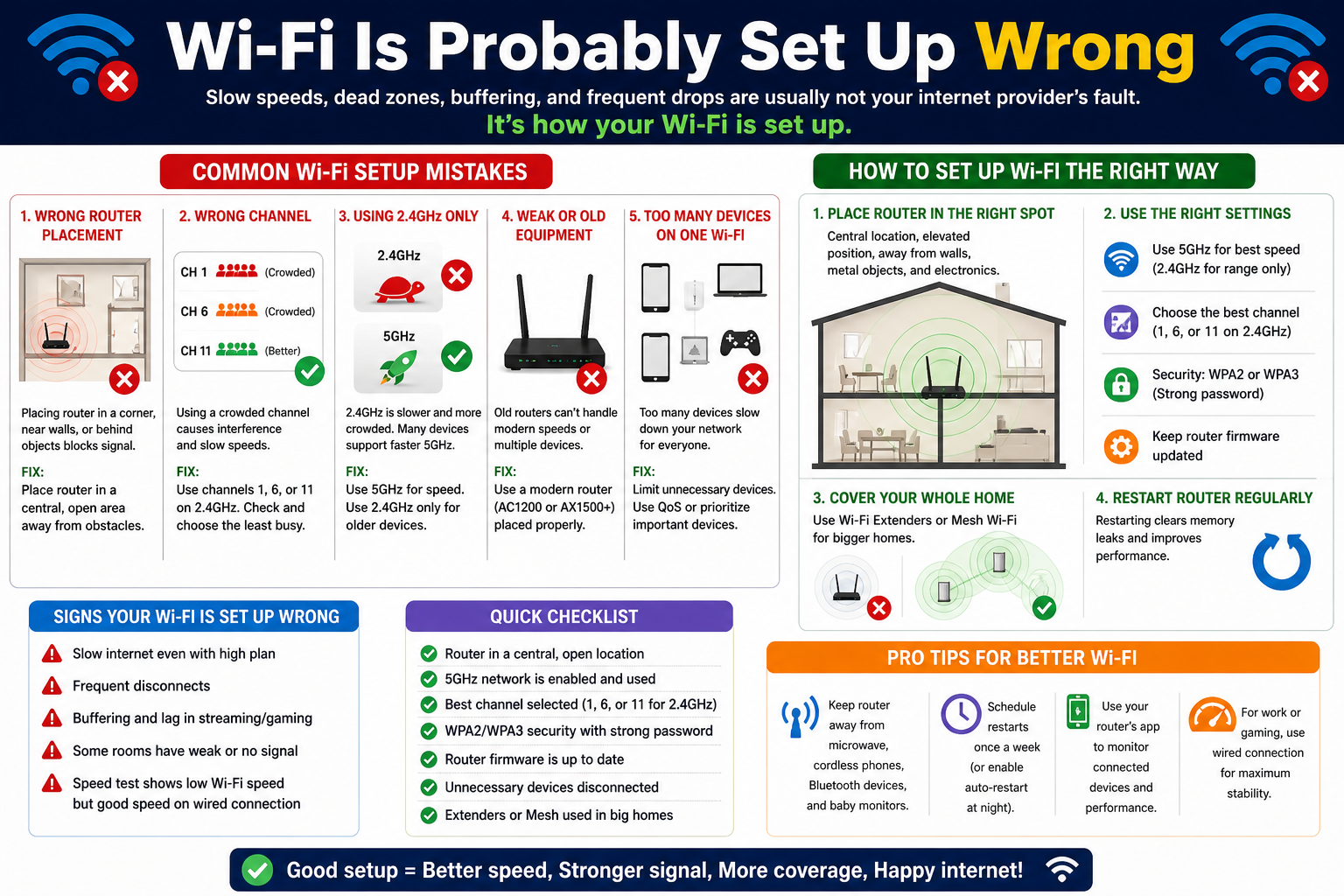
India added over 800 million broadband connections in the last decade. Airtel, Jio Fiber, BSNL, ACT, and dozens of regional ISPs now bring 100 Mbps, 200 Mbps, even 1 Gbps connections into Indian homes. Yet in the same homes, people complain about buffering on YouTube, video calls that freeze mid-sentence, and online gaming with 200ms ping.
The connection is fast. The Wi-Fi is the problem.
Most Indian home Wi-Fi setups are poorly configured — not because users are careless, but because ISPs hand over a modem-router combo, briefly show you the Wi-Fi password, and leave. The default settings are chosen for ease of setup, not for performance. This guide shows you exactly how to fix it.
First: Understand What You’re Actually Working With
Your home broadband setup has two distinct parts that most people treat as one:
The modem converts the signal coming in from your ISP (fiber optic, coaxial cable, or copper) into a digital Ethernet signal. In most Indian setups (especially Jio Fiber and Airtel Xstream), this is the ONT (Optical Network Terminal) — the white box that connects to the fiber cable entering your home.
The router takes that Ethernet signal and distributes it wirelessly to your devices. Many ISP-provided devices combine both functions in one box.
The ISP controls the modem/ONT settings. You control (or should control) the router settings. Understanding this distinction is critical because it tells you what you can and can’t change.
Step 1: Access Your Router Admin Panel
Everything that follows requires you to access your router’s admin interface — the control panel that lets you change Wi-Fi settings beyond just the password.
How to find your router admin page:
- Connect your phone or laptop to your home Wi-Fi
- Open a browser and type 192.168.1.1 or 192.168.0.1 in the address bar (these are the two most common router admin addresses in India)
- If neither works, check the sticker on the back of your router — it usually lists the “Admin URL,” “Default Gateway,” or “Router IP”
- Enter the admin username and password — also on the sticker if you haven’t changed it. Common defaults: admin/admin, admin/password, admin/[blank]
Change your admin password immediately after logging in. The default admin credentials are known to anyone who searches for your router model. If someone on your network (or who briefly connects to it) knows these, they can change your router settings.
Step 2: The 2.4 GHz vs 5 GHz Band — This Is Why You’re Getting Slow Speeds
Most modern routers are “dual-band” — they broadcast Wi-Fi on two radio frequencies simultaneously: 2.4 GHz and 5 GHz. Many users, and even many ISP technicians, set both bands with the same name (SSID), thinking they’re being helpful. They’re creating a problem.
2.4 GHz band:
- Range: Longer, penetrates walls better
- Speed: Slower (max ~150–300 Mbps in real-world conditions)
- Interference: High — shared with microwave ovens, Bluetooth devices, baby monitors, and every neighbour’s router
- Best for: Smart TVs in distant rooms, IoT devices (smart bulbs, doorbell cameras), devices where connectivity matters more than speed
5 GHz band:
- Range: Shorter, weaker wall penetration
- Speed: Much faster (400 Mbps to 1+ Gbps in real-world conditions)
- Interference: Lower — fewer devices use this band
- Best for: Laptops, smartphones near the router, streaming 4K, video calls, gaming
The fix: In your router admin panel, give the two bands different names — for example, “Home_2G” and “Home_5G”. Connect your laptops, phones, and smart TVs to “Home_5G” when they’re in the same room or adjacent room as the router. Connect IoT devices, printers, and distant smart TVs to “Home_2G”.
This one change alone meaningfully improves the experience for most users.
Step 3: Change Your Wi-Fi Channel — Your Neighbours Are Crowding You
Wi-Fi channels are sub-divisions within each frequency band. On 2.4 GHz, there are 11 channels in India (1 through 11), but only channels 1, 6, and 11 are non-overlapping — meaning they don’t interfere with each other.
In a dense Indian apartment building, every flat is broadcasting Wi-Fi. If you and five neighbours are all on Channel 6 (the default for many ISP-provided routers), you’re all competing for the same airspace and slowing each other down. This is called channel congestion.
How to find the least-congested channel:
On Android phones, install “WiFi Analyzer” (by farproc, free on Play Store). It shows you a graph of nearby networks and which channels they’re using. Look for channels 1, 6, or 11 that have the fewest networks on them and set your router to that channel.
On Windows laptop: Open Command Prompt, type netsh wlan show all, and look at the “Channel” column in the output. Then manually set your router to the least-used option.
In your router admin panel: Go to Wireless Settings → 2.4 GHz → Channel, and change from “Auto” to the specific channel number you identified. Repeat for 5 GHz (5 GHz has more available channels — typically you’re looking for channels 36, 40, 44, 48 in the lower range, or 149–165 in the upper range, depending on what’s clear).
Step 4: Router Placement — Where You Put It Matters Enormously
Most router placement in Indian homes is done purely by cable convenience — wherever the ISP technician ran the fiber, that’s where the router sits. This is usually one corner of the flat, often near the main door where the building’s fiber entered. This is almost always the worst possible location.
Physical barriers that dramatically reduce Wi-Fi signal:
- Reinforced concrete walls (extremely common in Indian construction — concrete with steel rebar is a near-Faraday cage for Wi-Fi)
- Thick stone walls (older buildings)
- Metal doors, metal cupboards, metal window grills (common in Indian homes for security)
- Microwave ovens (actively interfere with 2.4 GHz)
- Mirrors (the metallic backing reflects and scatters Wi-Fi)
- Elevators and stairwells (metal shafts)
Ideal router placement:
- Central location in the home relative to where you actually use devices most
- Elevated — on a shelf or table, not on the floor (Wi-Fi signals propagate in all directions including upward; floor placement wastes half the signal into the ground)
- Away from the microwave, TV, and large metal objects
- In open air, not inside a cupboard, drawer, or enclosed entertainment unit
For a 2BHK flat in India, the ideal router position is typically the living room or hallway — the most central accessible point — rather than the bedroom corner where ISPs usually install it.
Step 5: Enable QoS (Quality of Service) for Video Calls and Streaming
If you work from home or have multiple people streaming and gaming simultaneously, your router’s QoS settings can dramatically improve the experience.
QoS allows your router to prioritise certain types of traffic — ensuring that a Zoom call gets bandwidth priority over a background software download, for example. Without QoS, every device on your network competes equally for bandwidth, and a large download from one device can degrade everyone else’s experience.
In your router admin panel: Look for “QoS,” “Traffic Management,” or “Bandwidth Control.” Enable it and set priority:
- Highest: Video conferencing (Zoom, Google Meet, Teams), Voice calls (VoIP)
- High: Streaming video (YouTube, Netflix, Hotstar)
- Medium: General browsing, gaming
- Low: Background downloads, software updates, backup sync
Some routers (particularly those using OpenWrt, or mid-range models from TP-Link and Asus) have automatic QoS that detects traffic types. If your ISP-provided router has limited QoS options, this may be a reason to consider a third-party router (more on this below).
Step 6: DNS Settings — The Underrated Speed Fix
Every time you open a website, your router first asks a DNS (Domain Name System) server to translate the website name (csnr.in) into an IP address your device can actually connect to. By default, your router uses your ISP’s DNS servers.
ISP DNS servers in India are often:
- Slow to respond (adding 50–150ms to every page load’s initial connection)
- Unreliable (occasional outages cause “website not loading” errors that users blame on Wi-Fi)
- Limited in privacy (ISPs can see which websites you’re visiting through DNS queries)
Better DNS alternatives:
- Google DNS: Primary: 8.8.8.8 / Secondary: 8.8.4.4 — fast, reliable, globally maintained
- Cloudflare DNS: Primary: 1.1.1.1 / Secondary: 1.0.0.1 — consistently the fastest DNS in independent tests, with a stronger privacy commitment than Google
- OpenDNS: Primary: 208.67.222.222 / Secondary: 208.67.220.220 — fast, with optional content filtering
How to change: In your router admin panel, go to Network Settings → WAN settings → DNS. Change from “Automatic” to “Manual” and enter your preferred DNS addresses. This applies to all devices on your network simultaneously — you don’t need to change settings on each phone or laptop individually.
Step 7: Enable WPA3 Security If Available
If your router was purchased or provided in the last 2–3 years, it may support WPA3 — the latest Wi-Fi security standard. If you’re still on WPA2 (or worse, WPA), your Wi-Fi is vulnerable to offline dictionary attacks and certain cryptographic weaknesses.
In your router admin panel, go to Wireless Security and look for the Security Mode dropdown. If WPA3 is available, select “WPA3” or “WPA2/WPA3 Mixed Mode” (the mixed mode maintains compatibility with older devices that don’t support WPA3).
If your router only supports WPA2, ensure you’re using WPA2-AES (not WPA2-TKIP or WEP). AES is significantly more secure.
When to Consider Getting Your Own Router (Not the ISP-Provided One)
ISP-provided routers — especially the ones bundled “free” with Jio Fiber, Airtel Xstream, and ACT connections — are typically low-cost hardware with limited firmware, no future updates, and basic features. They’re fine for casual use but have real limitations:
- Limited Wi-Fi range (often no external antennas)
- No meaningful QoS
- No guest network with proper isolation
- No parental controls
- Basic firmware with known security vulnerabilities that never get patched
Third-party routers worth considering for Indian homes (2026):
For a 2BHK/3BHK flat (up to ~1,200 sq ft):
- TP-Link Archer AX23 (~₹3,500) — Wi-Fi 6, dual-band, significantly better performance than ISP routers
- TP-Link Archer AX55 (~₹6,000) — better range, more antennas
For a 3BHK/4BHK or independent house (1,200+ sq ft):
- TP-Link Deco M4 (2-pack mesh system) (~₹6,500) — mesh system eliminates dead zones by using multiple units that talk to each other
- TP-Link Deco XE75 (Wi-Fi 6E) (~₹14,000 for 2-pack) — premium option for large homes with many connected devices
Mesh systems specifically: If your home has more than 3 rooms and multiple floors, a mesh Wi-Fi system (multiple access points that work as one seamless network) is dramatically more effective than one router with extended range. The Deco range in India has good support and is widely available on Amazon and Flipkart.
Important note: When you use your own router with an ISP like Jio Fiber, connect your router to the ISP’s ONT via Ethernet cable (in “bridge mode” if the ONT supports it, or in a cascaded setup). Your ISP’s technical support can help configure this if needed.
Quick-Reference Fix Checklist
| Issue | Most Likely Cause | Fix |
| Slow speeds near router | Connected to 2.4 GHz band | Connect to 5 GHz band |
| Dead zones in bedrooms | Router in corner of flat | Move router to central location |
| Speeds fine but everything feels laggy | Channel congestion from neighbours | Change Wi-Fi channel |
| Video calls dropping/freezing | Bandwidth competition | Enable QoS |
| Websites load slowly even with fast internet | ISP DNS is slow | Switch to Cloudflare (1.1.1.1) |
| Neighbour’s devices appearing in network | Weak password / WPA2 | Enable WPA3, strengthen password |
| Consistent dead zone in one area | Physical barrier (concrete wall) | Add a Wi-Fi extender or mesh node |
The Bottom Line
A 200 Mbps Jio Fiber connection paired with a poorly placed, default-configured ISP router delivers a fraction of the speed and reliability you’re paying for. The fixes in this guide — band separation, channel selection, router placement, DNS change, QoS — cost nothing and take under an hour.
If you’ve done all of the above and still have dead zones in parts of your home, a ₹3,500–₹7,000 investment in a proper router or a mesh system will transform your home network in a way that no ISP plan upgrade can.
Your internet plan is only as fast as your Wi-Fi setup allows it to be. Fix the setup first.
Router admin menu locations vary by manufacturer and model. ISP-provided router admin access may be restricted in some plans — contact your ISP if you cannot access settings. Wi-Fi channels and regulations are governed by WPC (Wireless Planning and Coordination Wing, India). Channel 12, 13, 14 on 2.4 GHz are not permitted in India.

