
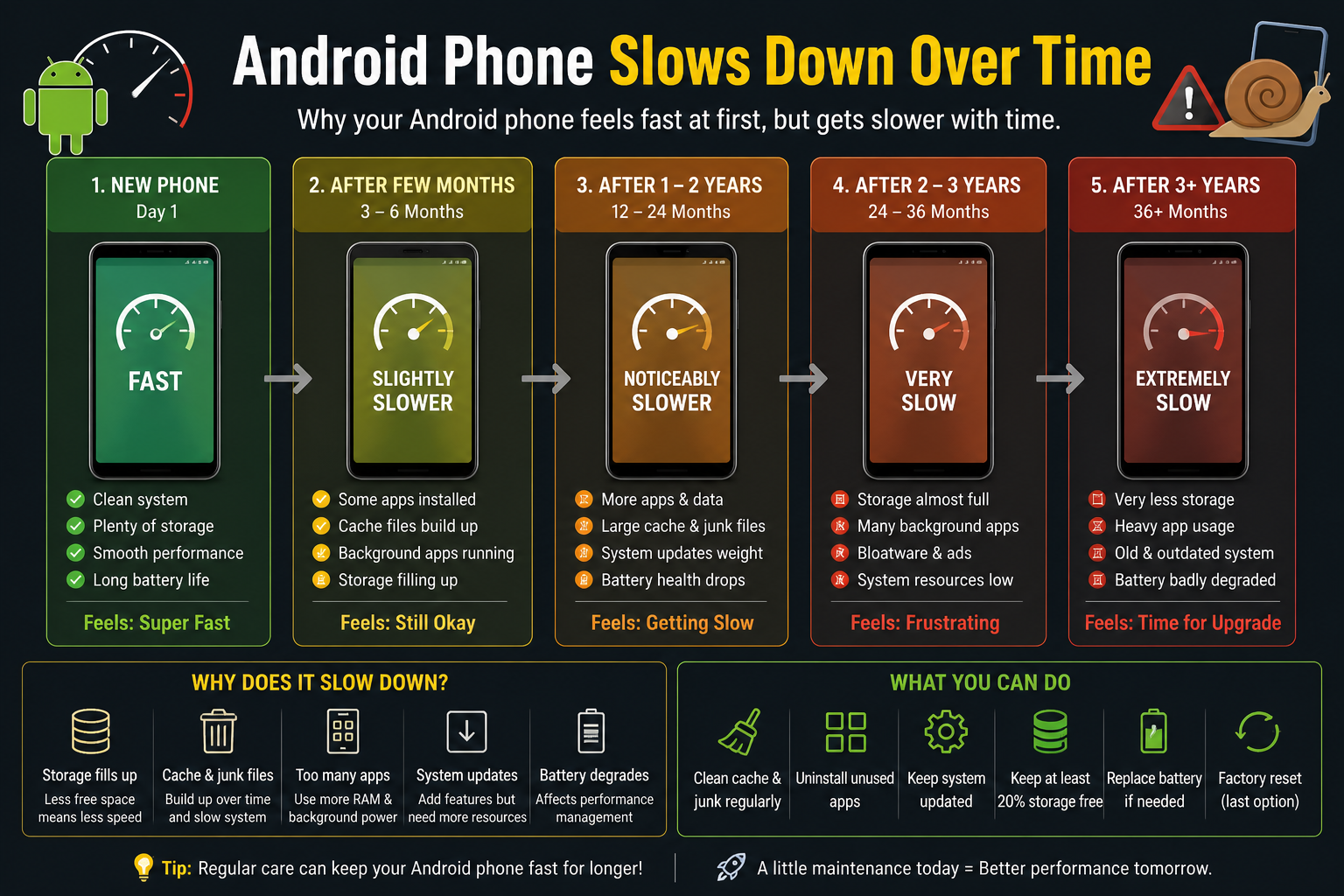
You buy a new Android phone. It’s fast. Apps open instantly. The camera is snappy. Everything feels premium.
Two years later, the same phone feels sluggish. WhatsApp takes three seconds to open. The camera shutter lags. Switching between apps causes a stutter. You wonder if the phone is dying — or if manufacturers deliberately slow old phones down to make you upgrade.
Both theories miss what’s actually happening. This guide explains the real technical reasons your Android phone slows down over time, and gives you a concrete, actionable process to recover most of that performance without buying a new phone.
The Real Reasons Your Phone Gets Slower (It’s Not Planned Obsolescence)
Reason 1: Storage Fragmentation and Full Storage
This is the single biggest performance killer that most people overlook. Android (like any operating system) uses your storage not just to store files, but as a workspace — apps write temporary data, system processes create cache, logs accumulate.
When your storage is nearly full, Android runs out of space to perform these operations efficiently. The system starts spending time managing fragmented data blocks rather than executing your requests. The result is noticeable lag in everything — app launches, camera processing, even typing.
The threshold matters: most Android devices start showing storage-related slowdowns when storage is above 80% full. If your 128GB phone has 110GB used, storage is almost certainly contributing to slowdowns.
The practical fix: Free up storage meaningfully, not cosmetically. Deleting 5 photos won’t help. You need to:
- Move photos/videos to Google Photos (enable Backup, then use “Free up space”)
- Clear cached data for large apps (Settings → Apps → select app → Storage → Clear Cache)
- Uninstall apps you haven’t used in 90 days — not just the app data, the full installation
- Use “Files by Google” app which actively identifies large files, duplicates, and cached data
Target: get below 70% storage utilisation.
Reason 2: Accumulated Background App Processes
Android is designed to keep recently used apps in RAM so they reload faster. This is intentional. However, over time:
- Some apps acquire “autostart” permissions and launch themselves in the background even when you haven’t opened them
- Some apps have background sync processes that run constantly (email clients, news apps, social media apps checking for updates)
- Poorly optimised apps develop memory leaks — they consume RAM and don’t release it properly
The effect is that your phone’s RAM — already finite — gets choked with processes you’re not actively using. When you try to open a new app, the system scrambles to free RAM, which causes the delay you experience.
The practical fix:
- Go to Settings → Battery → Battery Optimisation and restrict background activity for apps you don’t need real-time notifications from (games, shopping apps, entertainment apps)
- In Settings → Apps, look for apps that show unusually high “Background time” in their battery usage details
- Be cautious with social media apps. Facebook, Instagram, and Snapchat are notoriously aggressive background runners. Consider using their mobile browser versions (m.facebook.com, etc.) instead of native apps — this alone can free significant RAM and battery on budget and mid-range phones
- Avoid third-party “RAM cleaner” or “Phone booster” apps. These typically make performance worse by killing processes Android was intentionally keeping in memory, forcing a full cold-start the next time you open those apps
Reason 3: Operating System Updates on Limited Hardware
When Android updates arrive, they often bring new features that assume better hardware. The OS gets heavier while the phone’s processor and RAM stay the same.
This is the legitimate kernel of truth inside the “planned obsolescence” theory. Manufacturers are not maliciously slowing your phone, but OS updates are designed for current and future hardware, not 3-year-old processors. A Snapdragon 665 running Android 12 is working harder than the same chipset running Android 10 because Android 12 simply does more.
Additionally, app updates follow OS capabilities. If the OS upgrades, app developers update their apps to use new APIs — and those updated apps are heavier than their earlier versions.
The practical fix:
- If your phone is more than 3 years old and a new OS update arrives, research whether other users with your specific model are reporting performance improvements or degradations before updating. XDA Developers forums and Reddit communities for your phone model are the best resources for this
- If an update has already caused slowdowns, check if your manufacturer allows reverting (most don’t) — if not, a factory reset after the update often recovers performance by clearing accumulated debris from the update process
- Consider whether your phone manufacturer provides optimised firmware updates separate from stock Android updates (Samsung One UI, Xiaomi MIUI, and Realme UI all do periodic optimisation patches)
Reason 4: A Degraded Battery Affecting Performance
This is something iPhone users learned about first (when Apple’s “throttling” scandal broke in 2017), but it applies to Android equally — the hardware will throttle the processor when the battery can’t deliver consistent power.
As lithium-ion batteries age, they lose capacity and — more importantly — their ability to deliver peak current. A degraded battery at 75% capacity may not be able to power a high-performance processor spike (like launching a camera, loading a game, or processing a phone call) without a voltage dip that would shut the device down. To prevent unexpected shutdowns, the processor governor reduces the maximum clock speed the chipset can reach.
This manifests as a phone that handles idle tasks fine but stutters on demanding operations — exactly what frustrated users notice.
How to check battery health on Android:
- Samsung phones: Dial *#0228# in the phone dialer to see battery data, or use Samsung Members app → Help → Interactive Checks → Battery
- Other Android phones: Install “AccuBattery” (free tier is sufficient) and let it run through a few charge cycles to estimate actual battery capacity vs. design capacity
- A battery retaining less than 80% of its original capacity is contributing meaningfully to performance issues
The practical fix: Battery replacement. For most mid-range to flagship Android phones, an authorised service centre battery replacement costs ₹800–₹2,500 depending on the model. This single fix often recovers more performance than any software optimisation — and significantly improves battery life simultaneously.
Reason 5: Bloatware and Manufacturer Apps Running in Background
Indian market Android phones (especially those from Xiaomi, Realme, Samsung, and vivo) often come with a significant number of pre-installed apps. Many of these run in the background:
- System-level advertising SDKs that periodically ping ad servers
- Manufacturer app stores (GetApps, Galaxy Store) checking for updates
- Regional bloatware apps bundled for Indian market carrier deals
- AI features that run continuously (Samsung’s Bixby, Xiaomi’s AI assistant)
The practical fix:
- Disable, don’t just “not use,” pre-installed apps you don’t need. In Settings → Apps, many bloatware apps have a “Disable” option that stops them running entirely without rooting your phone
- Xiaomi MIUI specifically: Go to Settings → Privacy → Ads → turn off “Personalised ad recommendations” — this reduces background network activity from the ad SDK
- Samsung phones: Disable Bixby routines and Samsung Daily if you don’t use them — these run background processes constantly
The Full Reset Option: When to Do It and How to Prepare
If your phone is 2–3 years old and has never had a factory reset, the accumulated software debris — deleted apps that left configuration files, system logs, fragmented databases — can be significant. A factory reset is essentially a deep clean.
When to consider it: If you’ve done storage cleanup, battery check, background app management, and still notice unexplained slowdowns, a factory reset often recovers meaningful performance on 3+ year-old devices.
Preparation checklist (do not skip these):
- Enable Google Photos backup and verify it’s complete (check that all photos show “Backed up” status)
- Export WhatsApp backup to Google Drive (WhatsApp → Settings → Chats → Chat Backup → Back Up Now)
- Note down all apps you use (take a screenshot of each home screen page)
- Check that your Google account is synced — contacts, calendar, Gmail are automatically backed up
- Note any app-specific data that doesn’t automatically sync (game progress on locally-stored games, authenticator app backup codes, banking app settings)
- Write down your Wi-Fi passwords (after reset, you’ll need to re-enter them)
After the factory reset: Install only the apps you actually use. The temptation to reinstall everything “just in case” immediately recreates the bloat you just cleared. Give your phone a week before deciding what you actually need.
Optimisations That Actually Work vs. Myths
Things that genuinely improve performance:
- Freeing storage below 70% utilisation
- Reducing background app activity
- Replacing a degraded battery
- Disabling (not just closing) unused pre-installed apps
- Factory reset after proper backup (for 3+ year old devices)
- Keeping the OS updated on phones where the manufacturer still provides optimisation patches
Things that don’t help (or make it worse):
- RAM cleaners and “booster” apps — these actively harm performance by destroying Android’s memory management
- Killing all background apps manually — counterproductive; forces cold starts every time
- Clearing system cache partition (unless specifically fixing a post-update issue) — on modern Android this has minimal impact
- Changing animation speed in Developer Options to 0.5x — this makes animations look faster but doesn’t change actual app launch time; it’s a perception trick, not a real fix
- Underclocking the CPU — reduces heat but also reduces performance; not a net win for a phone that already feels slow
When to Genuinely Consider a New Phone
Performance optimisation has limits. If your phone is:
- More than 4 years old and no longer receiving security patches
- Running hardware that genuinely can’t run current apps smoothly (under 3GB RAM, outdated SoC)
- Showing battery health below 70%
- Experiencing hardware issues (display, cameras, charging port)
…then software optimisation is delaying the inevitable. A phone that can’t receive security updates is also a security risk, which matters especially if you use it for banking, UPI, and sensitive communications.
In India’s current market, the ₹12,000–₹18,000 segment (Poco M6 Pro, Redmi Note 13, Samsung Galaxy M35) offers genuinely good hardware that will perform well for 3–4 years with reasonable care.
The Bottom Line
Your Android phone slows down because software gets heavier, storage gets fuller, batteries degrade, and accumulated processes build up. None of this requires a new phone to fix — at least not for the first 3–4 years.
Start with storage: get below 70%. Check background apps. If the battery is degraded, replace it. If the phone is 3+ years old with no reset, factory reset after proper backup.
Most “my phone is dying” situations are, in fact, “my phone needs maintenance.” The fixes are free or cost a fraction of a new device.
Article reflects Android behaviour as of Android 13/14. Specific menu paths may vary by manufacturer (Samsung One UI, Xiaomi MIUI, Realme UI, etc.). Battery service should be done at authorised service centres to maintain warranty and ensure genuine parts.

